Help > Access and Signing In > Android
Android/Chrome OS
You have the ability to access your hosted RDP session from your Android or Chrome OS device. To access the RDP environment from your Android or Chrome OS device, you will need to download the Windows App. The following steps will instruct you on how to access your session using the Windows App.
Important Note: If this is your first time logging into the RDP environment, you need to perform an initial Multi-Factor Authorization and create a new password before proceeding with the steps below. The first time you login in any given calendar month you will need to repeat the MFA process.
Install the Windows App app from the Google Play Store.
Once downloaded and installed, launch Windows App Mobile.
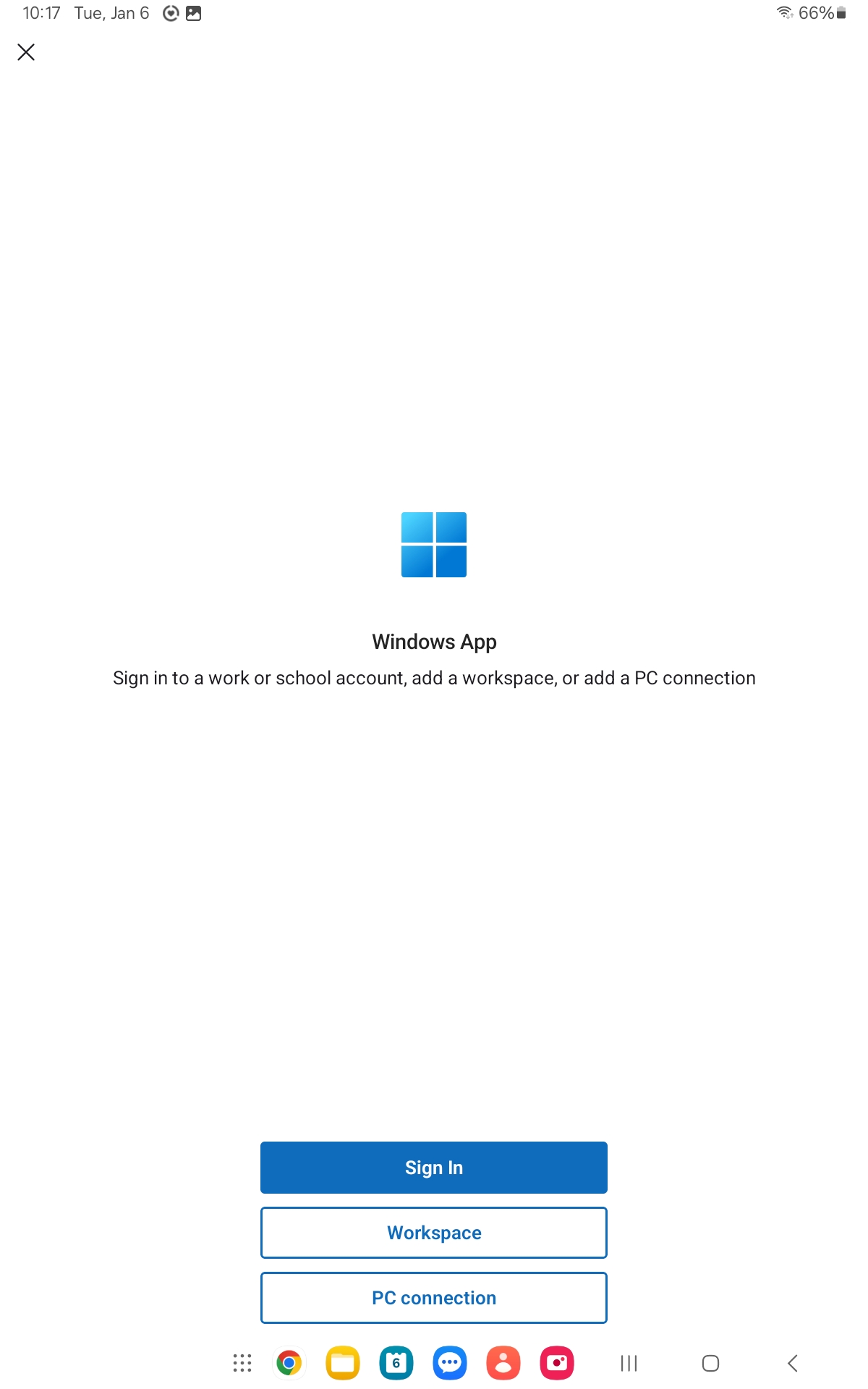
You will see the following screen. Click on Workspace.
Enter https://hosted.freymunicipalsoftware.com/ for the workspace URL, then click Next.
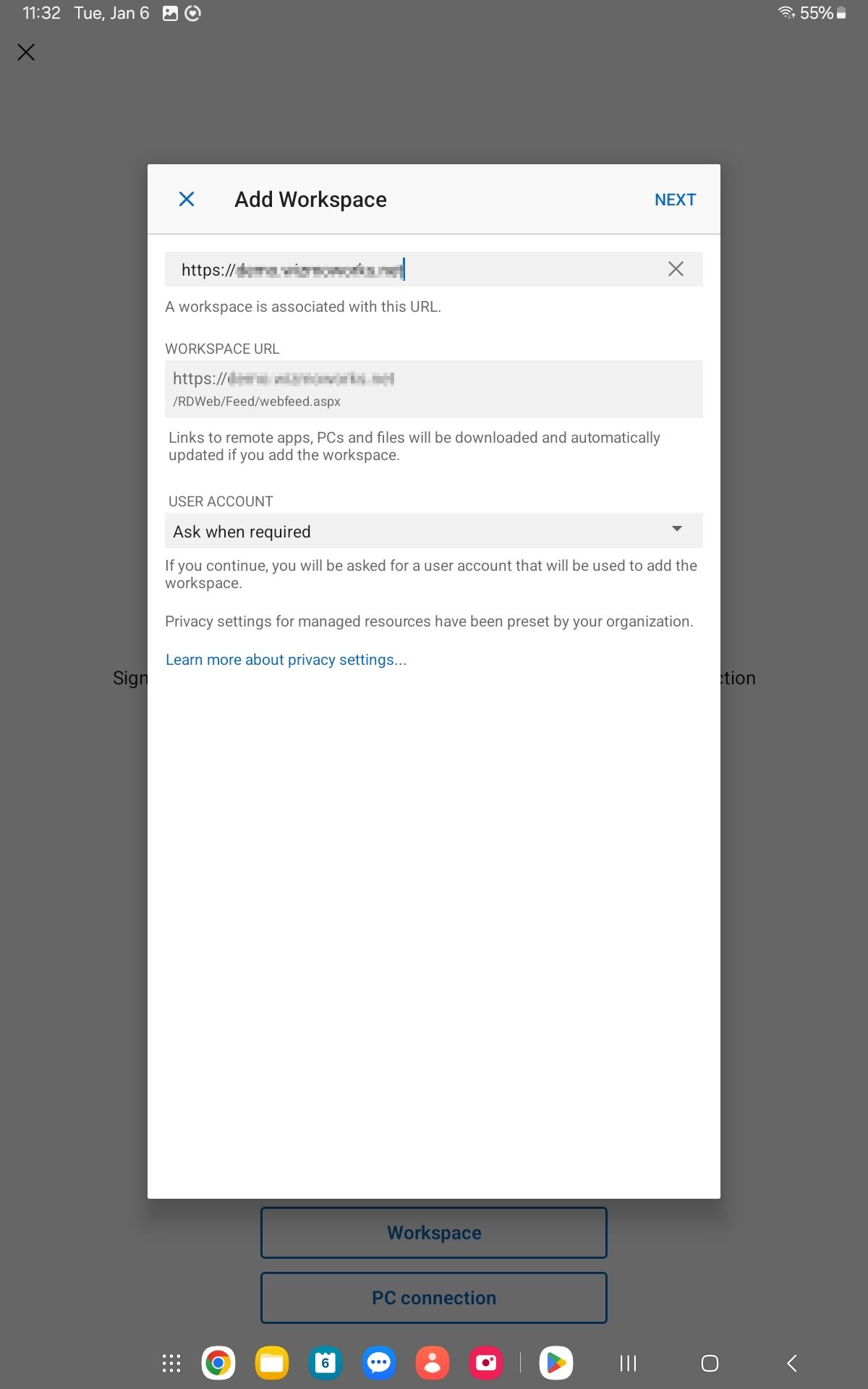
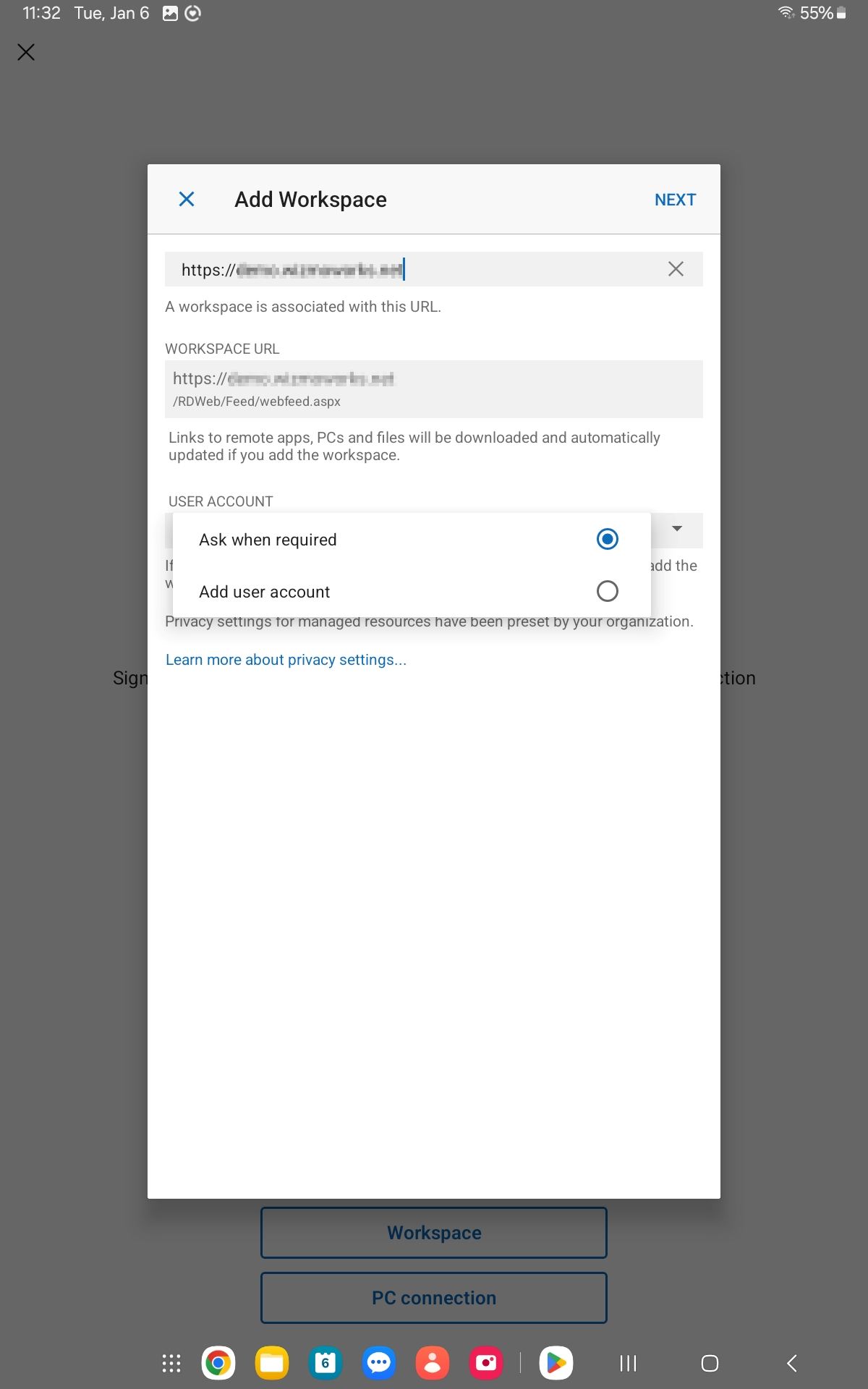
Click the drop down to choose a user account. Select Add user account.
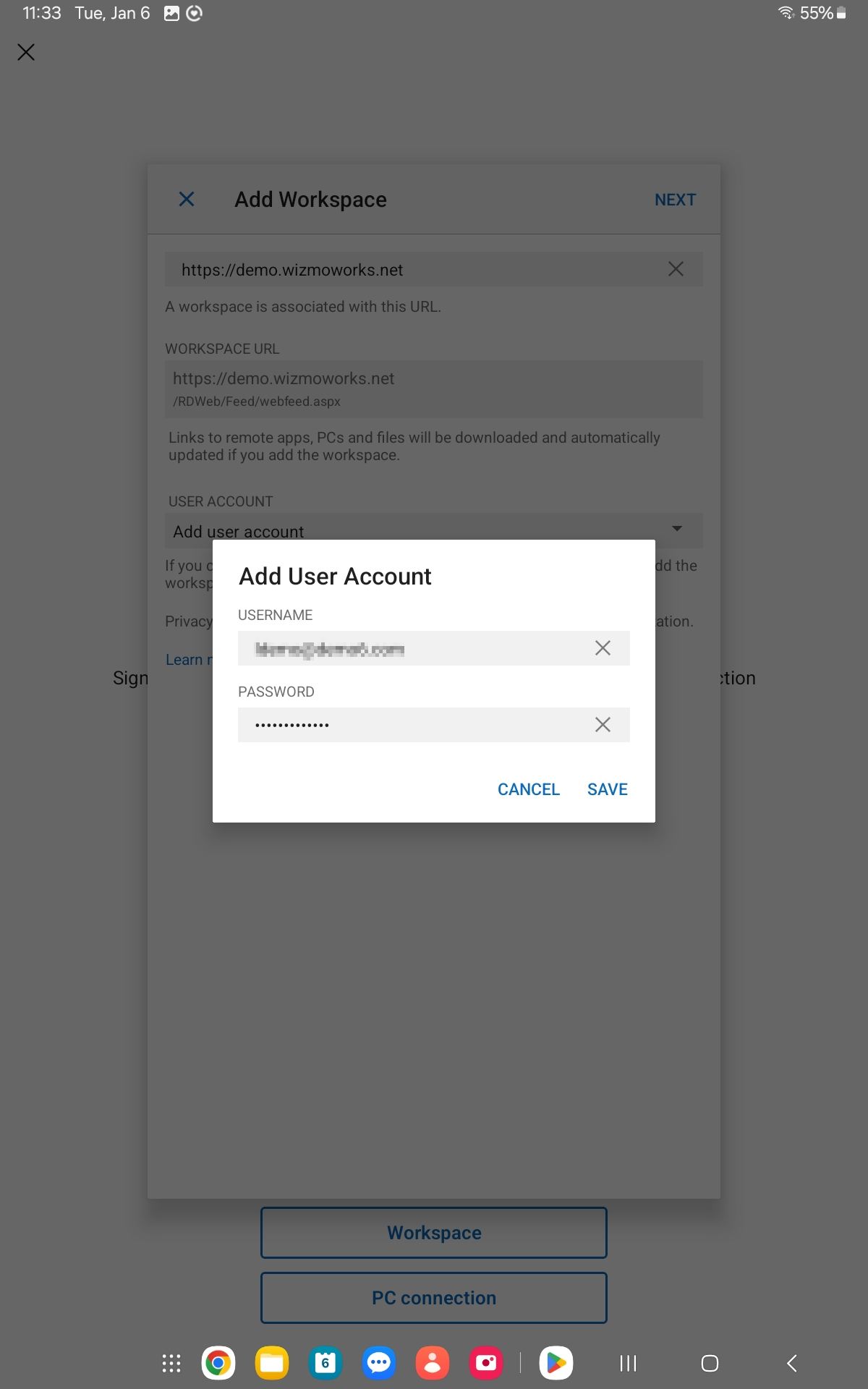
Fill in your User Name and Password in the Add User Account dialog and click SAVE.
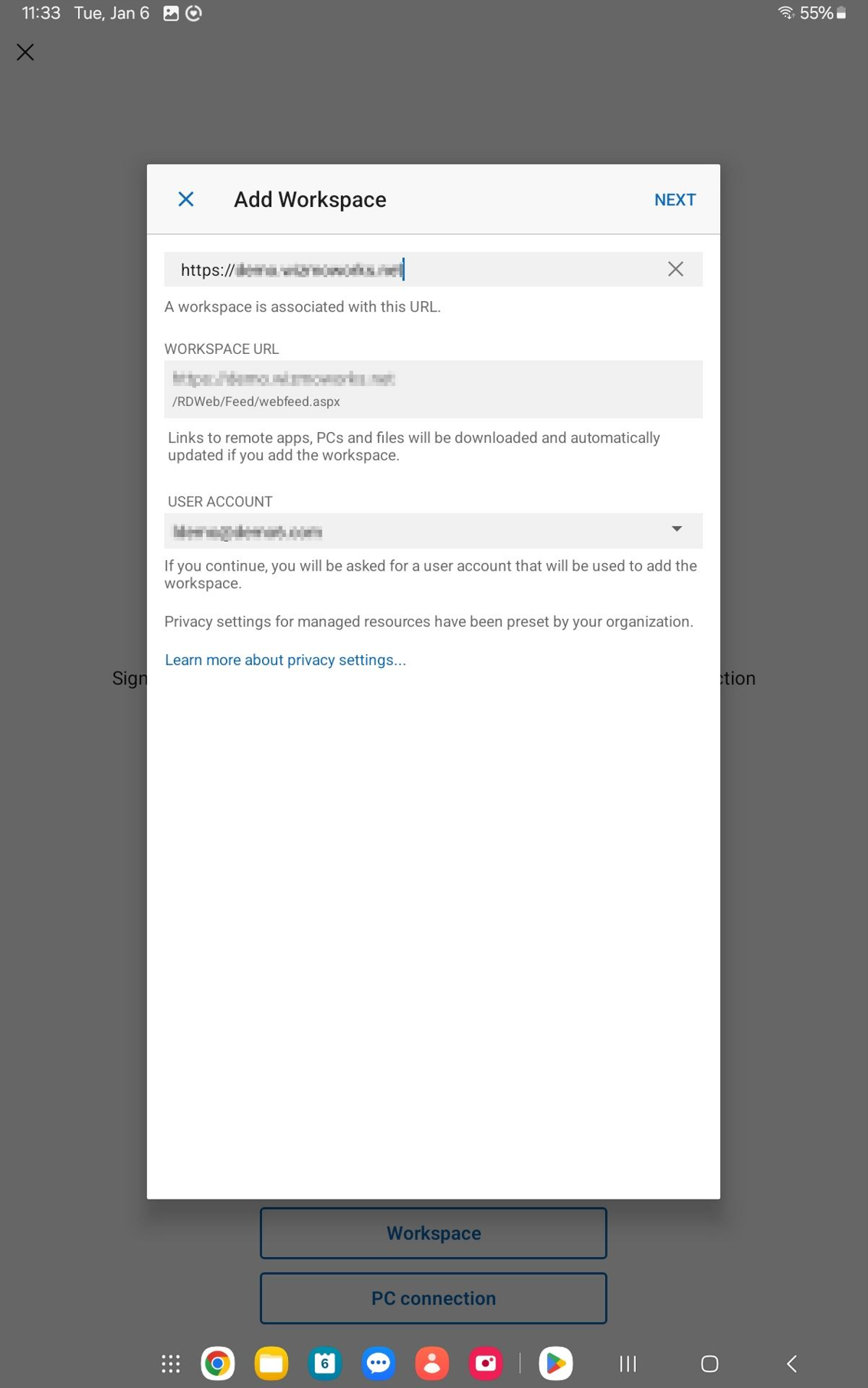
Hit NEXT back on the Add remote resource feed dialog.
You should now find your application in the Apps tab.
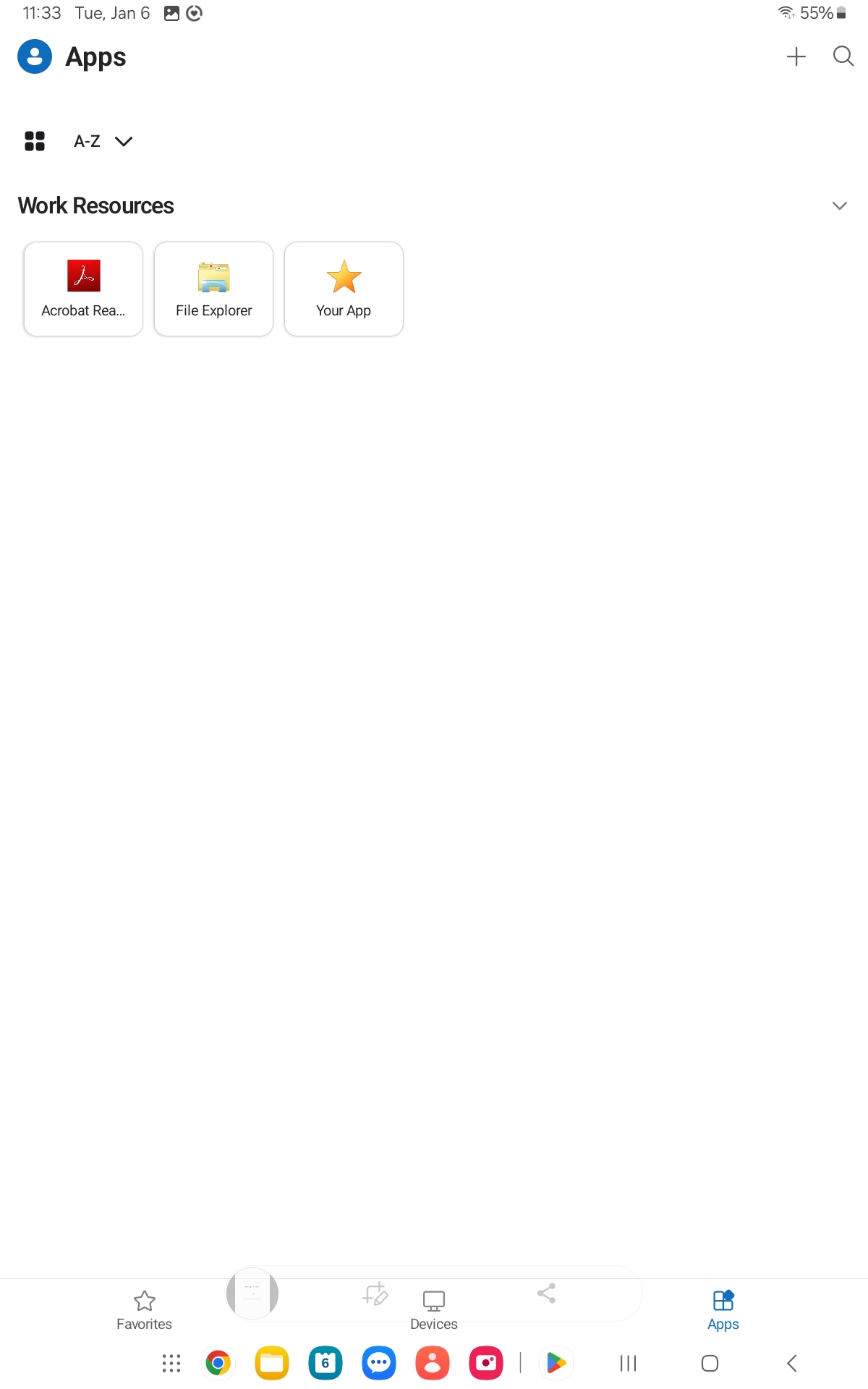
Click or Tap a resource to launch it.
If you see the following dialog, make sure the check the box for Never ask again for connections to this PC is checked, then choose Connect.
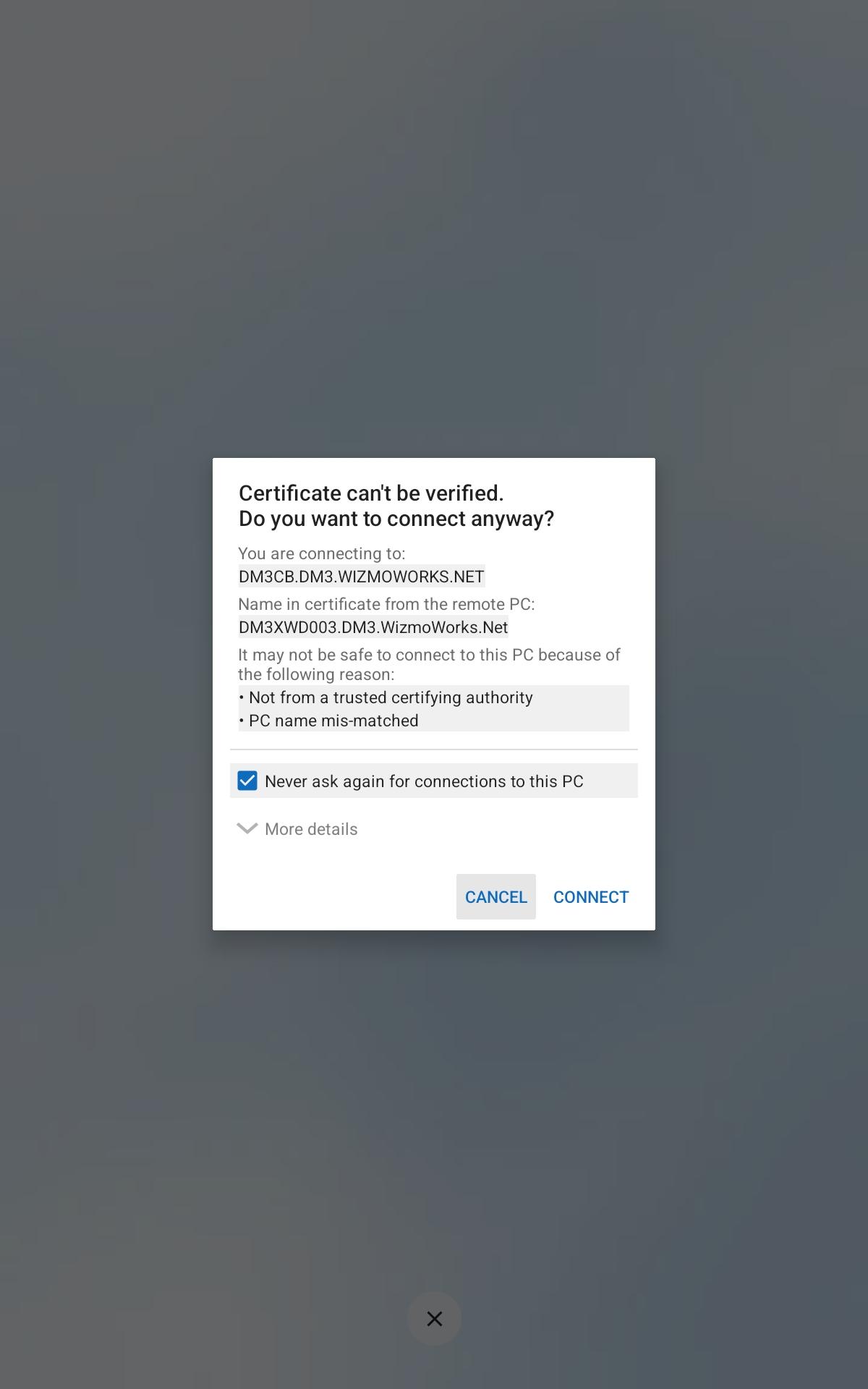
You have now successfully set up access to your RDP environment on your Android device.
How to Sign In
- You will always use the Windows App to access your hosted session.
- Once you have set up access by completing the above steps, you can simply launch the Windows App and select your resource from the Apps list (shown above) for future logins.