Help > Access and Signing In > iOS
iOS
You have the ability to access your hosted RDP session from your iOS device. To access the RDP environment from your iOS device, you will need to download Windows App Mobile. The following steps will instruct you on how to access your session using the Windows App Mobile.
Important Note: If this is your first time logging into the RDP environment, you need to perform an initial Multi-Factor Authorization and create a new password before proceeding with the steps below. The first time you login in any given calendar month you will need to repeat the MFA process.
Download Windows App Mobile from the App Store.
Once downloaded and installed, launch Windows App Mobile.
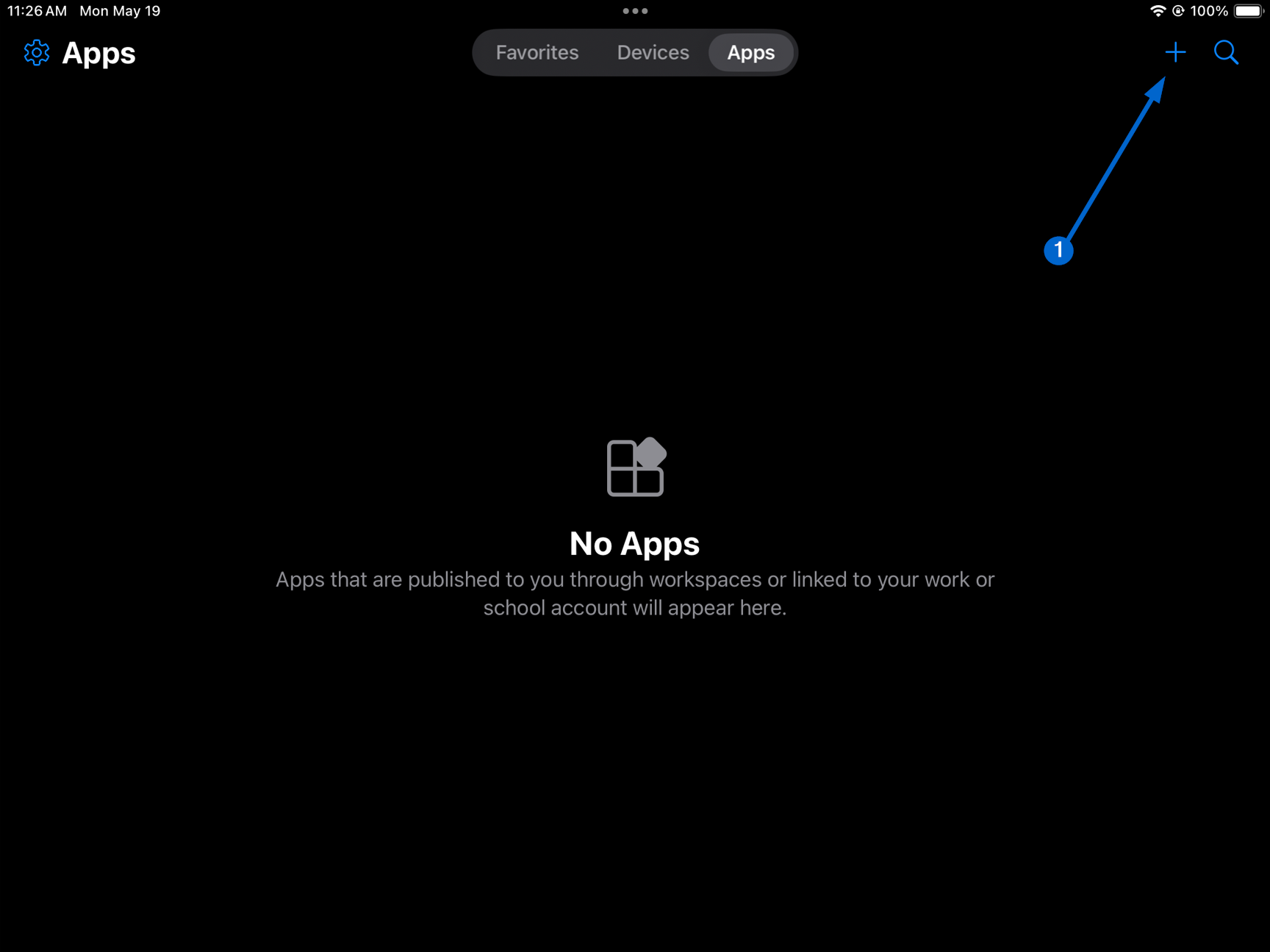
Select the Apps view and then touch the + symbol (located in the upper-right corner).
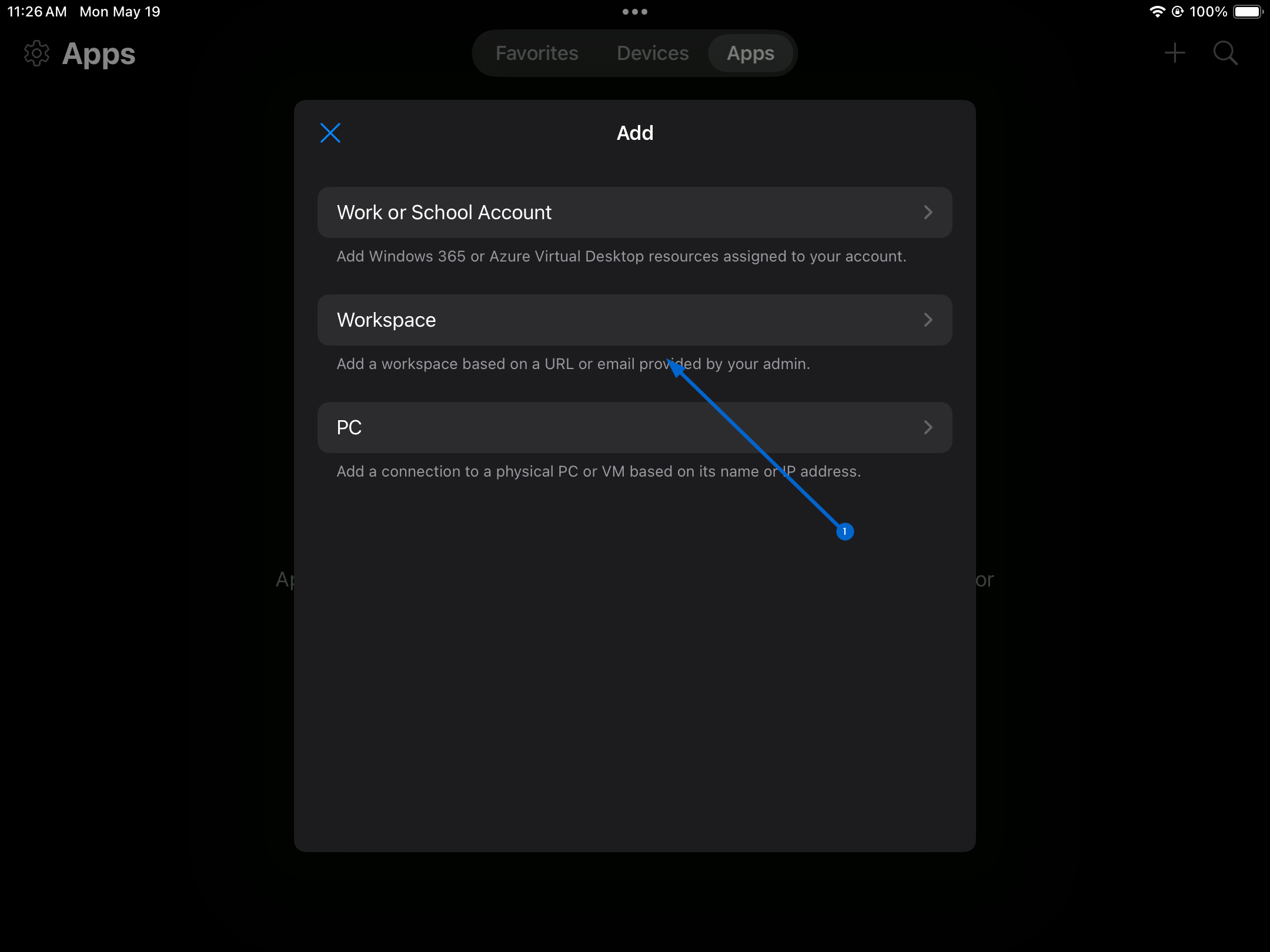
Choose Workspace.
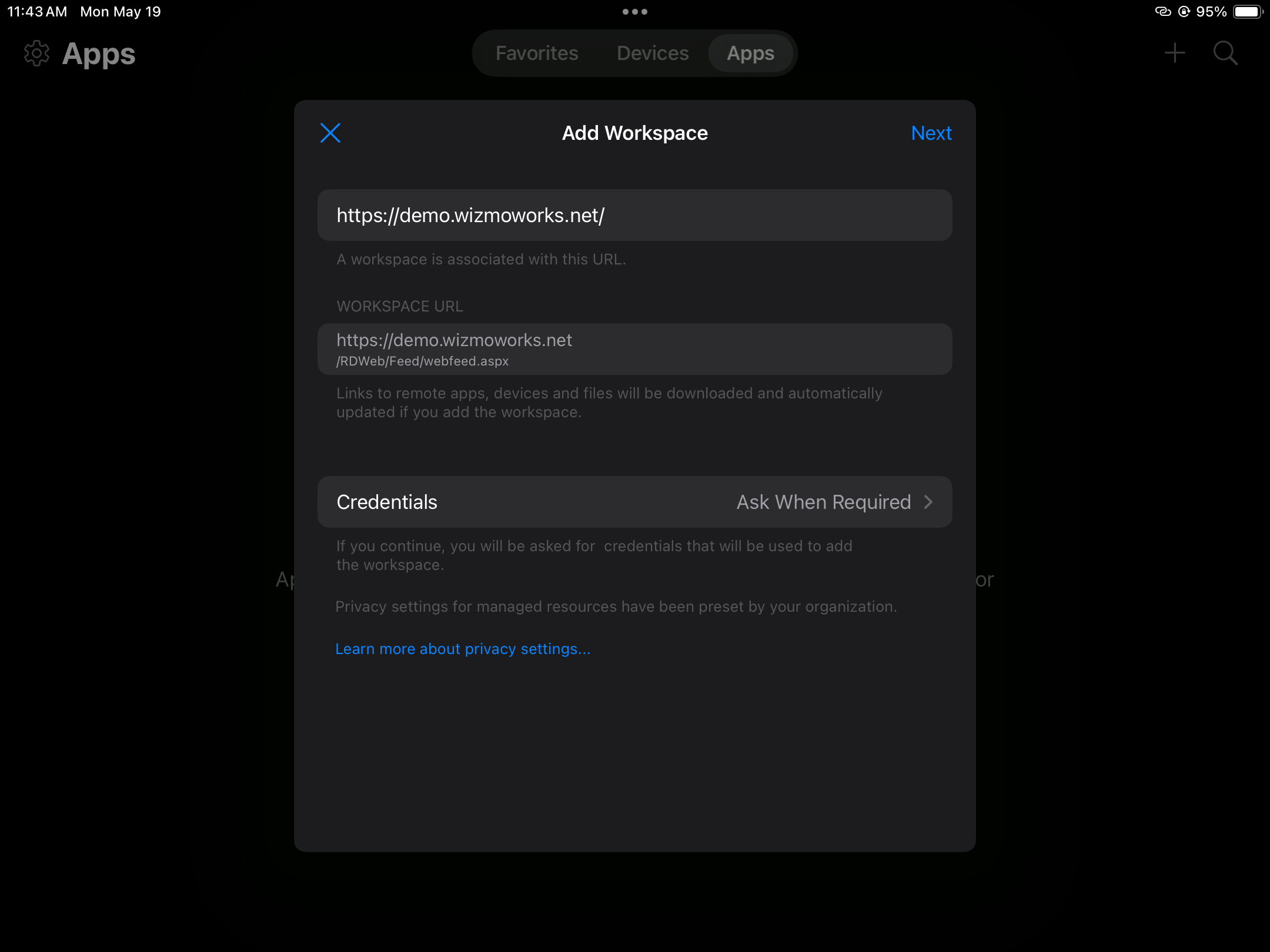
Type in the following URL (https://hosted.freymunicipalsoftware.com/), then select Ask When Required next to Credentials.
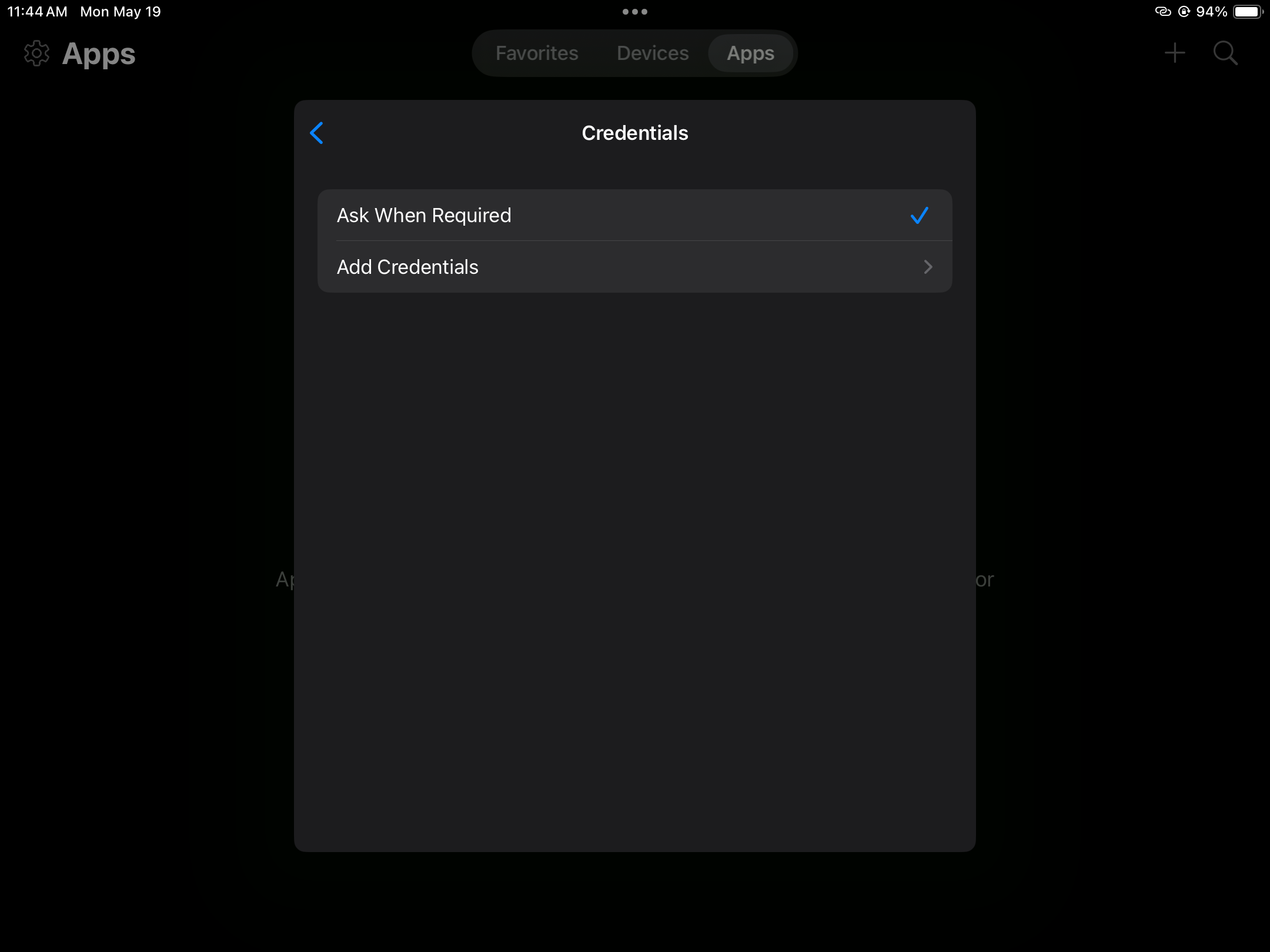
Select Add Credentials
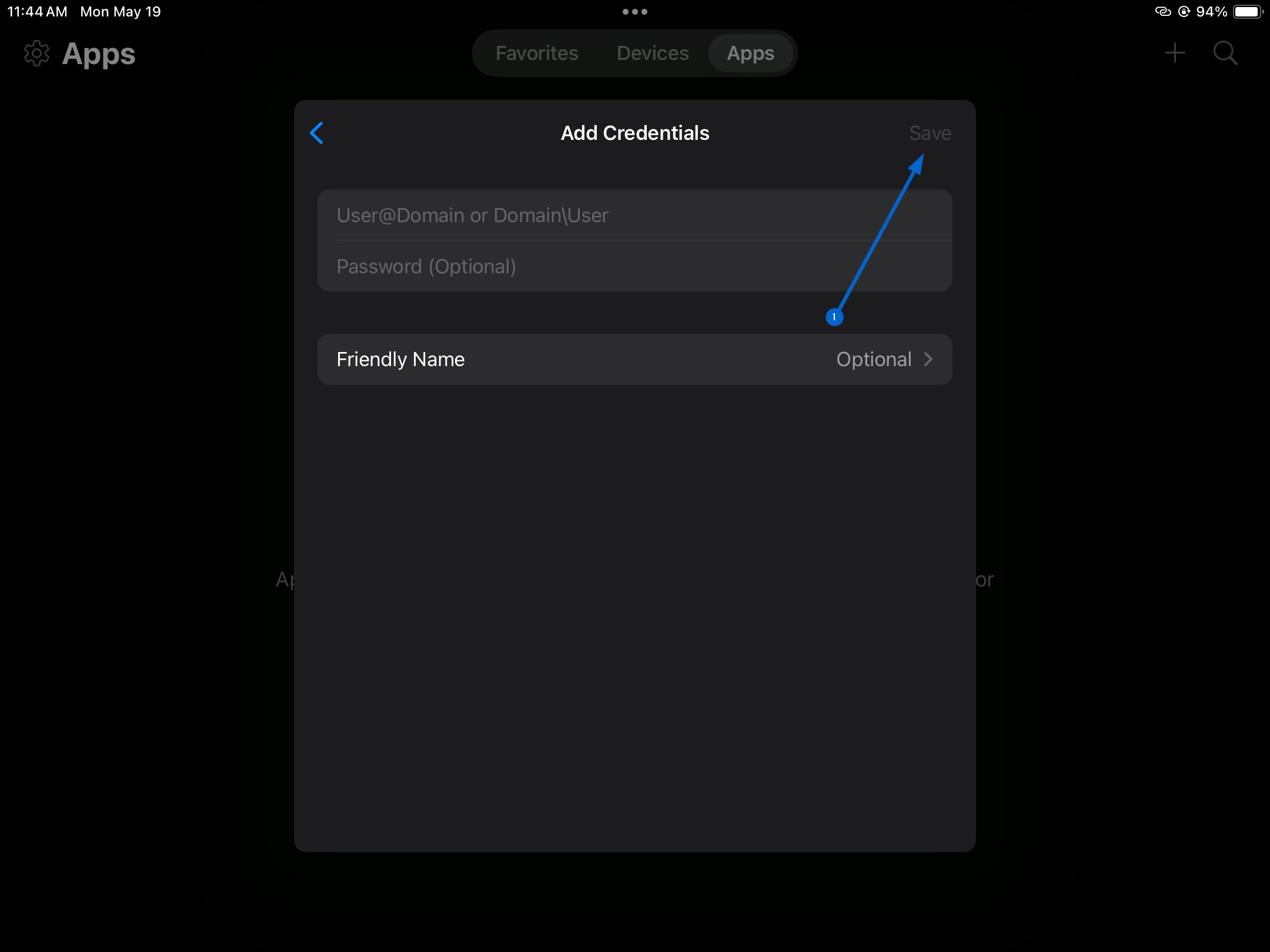
Enter your User Name and Password. Then select Save.
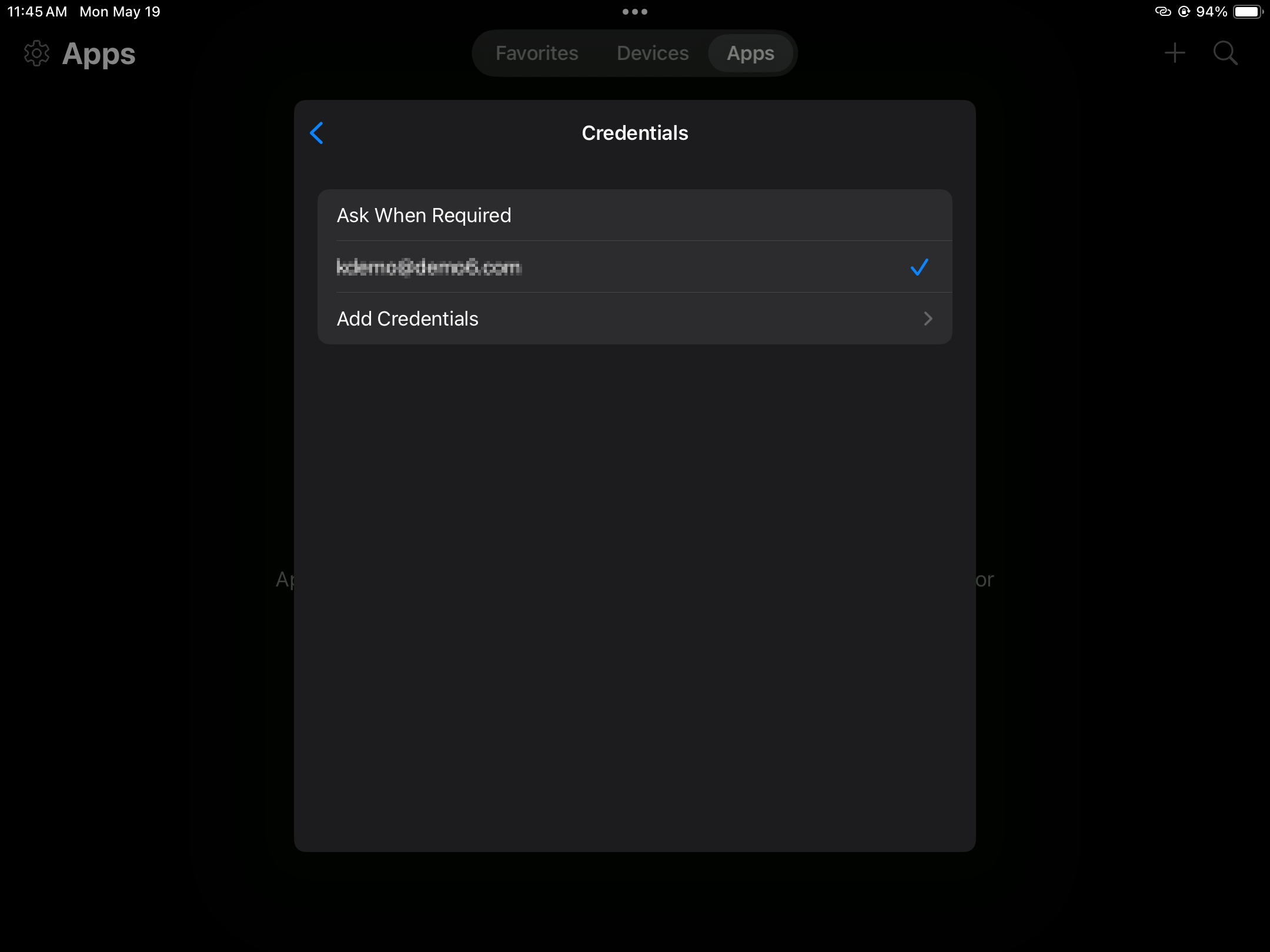
Validate that your User Name has a checkmark next to it, then touch the back arrow.
Again validate that your User Name is indicated, then touch Next.
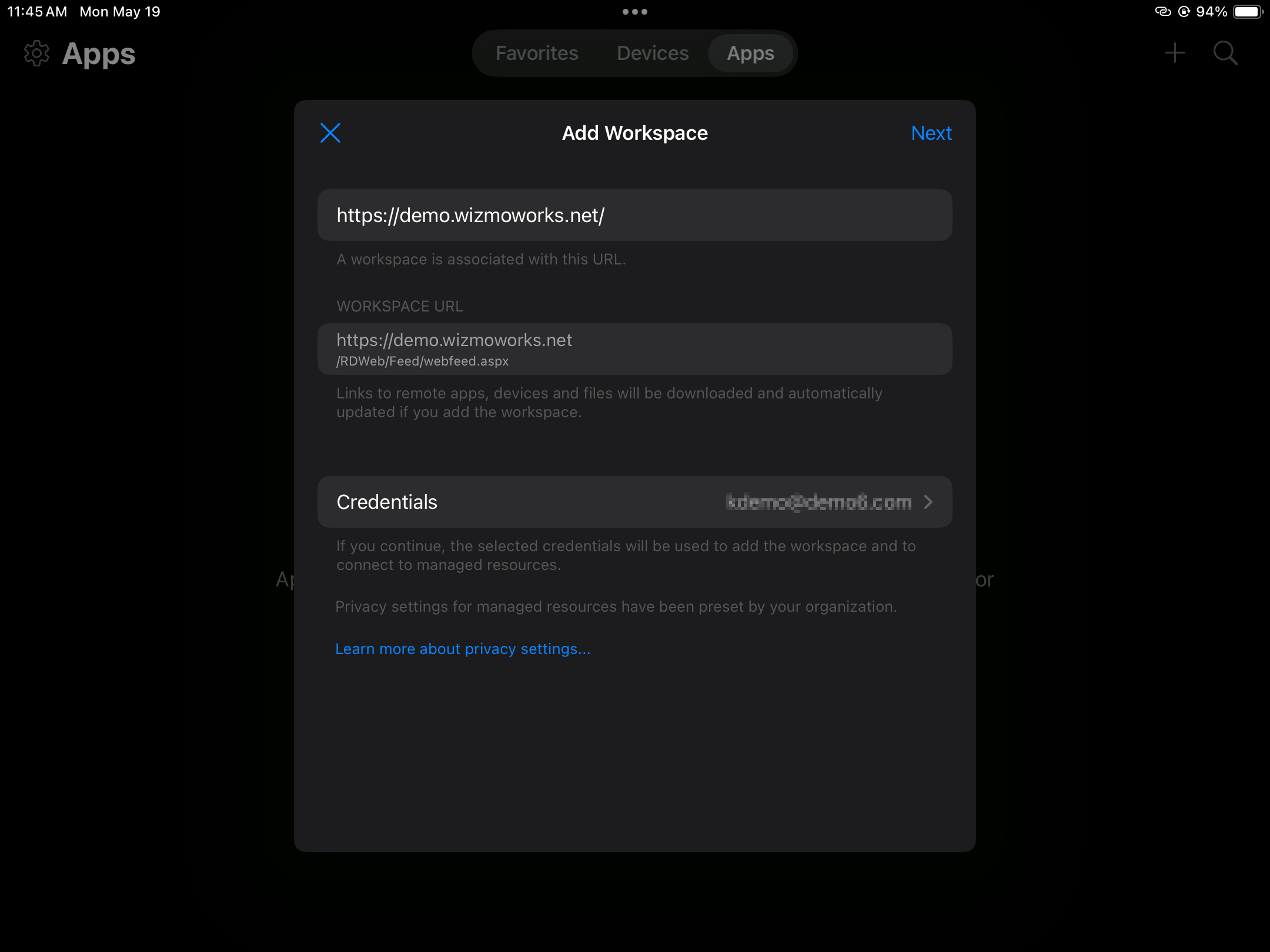
You should now see your work resource under Apps.
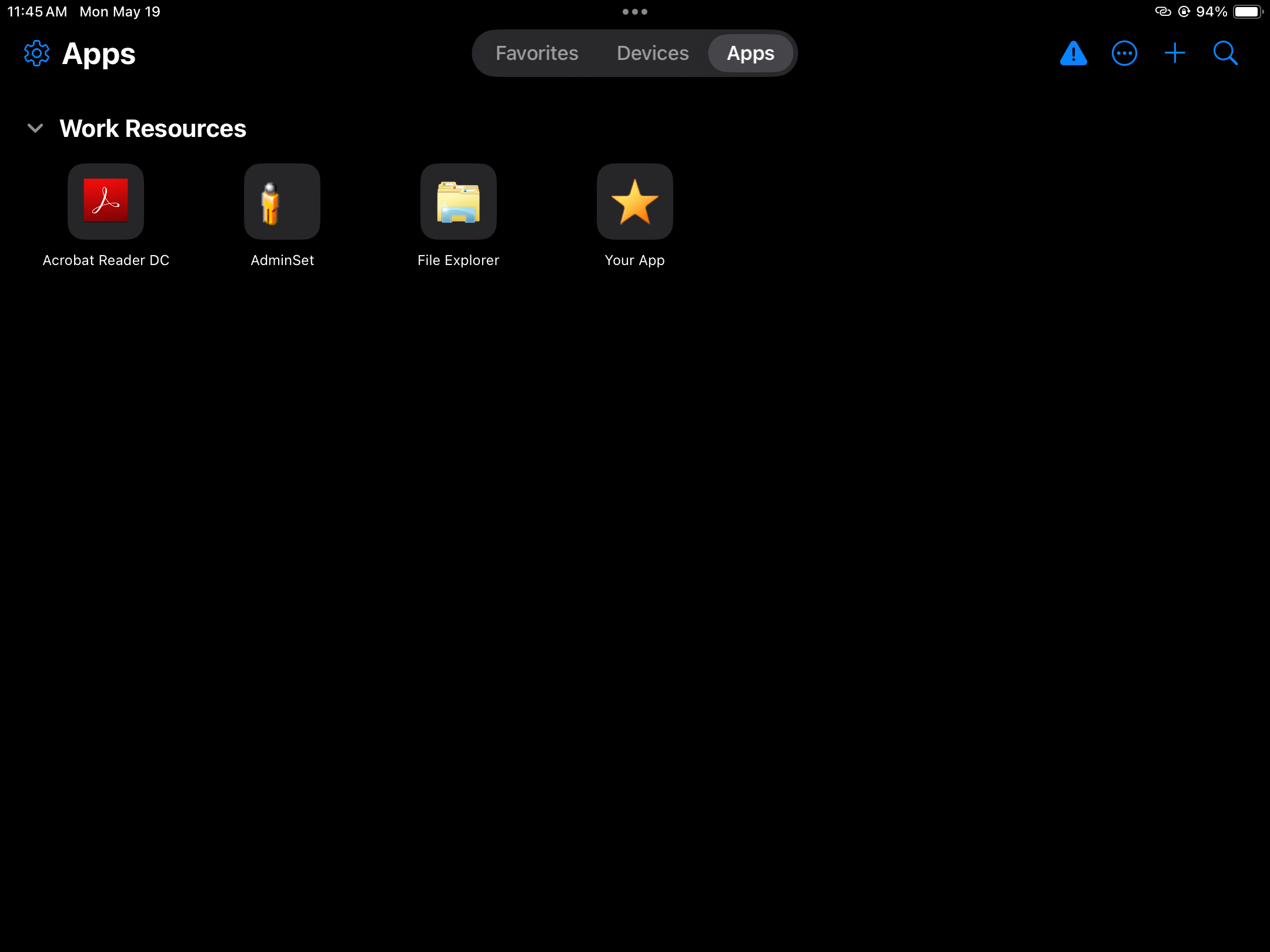
You have now successfully set up access to your RDP environment on your iOS device.
How to Sign In:
- You will always use Windows App Mobile to access your hosted session.
- Once you have set up access by completing the above steps, you can simply launch Windows App Mobile and select your remote application from the Apps list (shown in Step 10) for future logins.